v
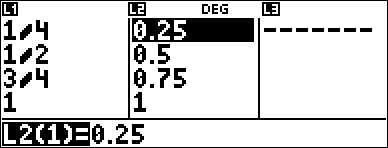
Pressing v displays the Data Editor where you can enter data in up to 3 lists (L1, L2, L3). Each list can contain up to 50 items.
Note: This feature is available in DEC mode only.
When editing a list, press v to access the following menus:
|
CLR |
FORMULA |
OPS |
|
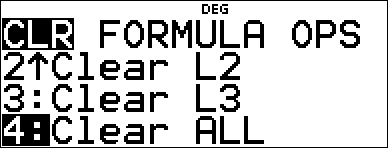
1:Clear L1 2:Clear L2 3:Clear L3 4:Clear ALL |
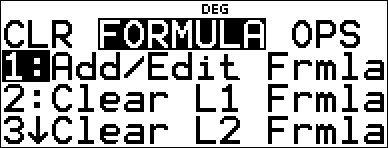
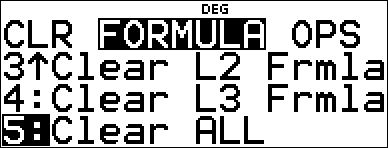
1:Add/Edit Frmla 2:Clear L1 Frmla 3:Clear L2 Frmla 4:Clear L3 Frmla 5:Clear ALL |
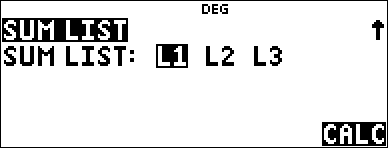
1:Sort Sm-Lg... 2:Sort Lg-Sm... 3:Sequence... 4:Sum List... |
Entering and Editing Data
| • | Use ! " # $ to highlight a cell in the data editor and then enter a value. |
| • | Mode settings such as number format, Float/Fix decimal and angle modes affect the display of a cell value. |
| • | Fractions, radicals and p values will display. |
| • | Press: |
| - | L in a cell edit to store the value of the cell to a variable. |
| - | r to toggle the number format when a cell is highlighted. |
| - | J to delete a cell. |
| - | < - to clear the edit line of a cell. |
| - | % s to return to the Home Screen. |
| - | % # to go to the top of a list. |
| - | % $ to go to the bottom of a list. |
| • | Use the CLR menu to clear the data from a list. |
List Formulas (FORMULA menu)
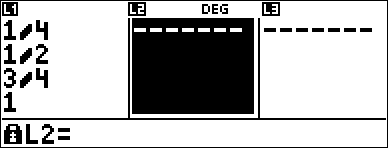
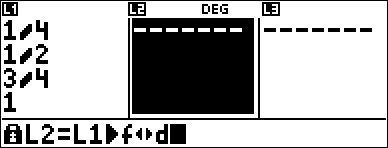
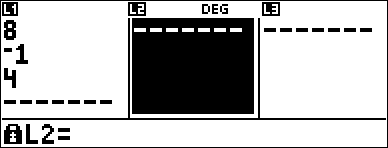
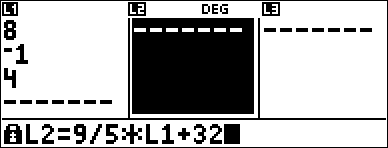
| • | In the data editor, press v " to display the FORMULA menu. Select the appropriate menu item to add or edit a list formula in the highlighted column, or clear formulas from a particular list. |
| • | When a data cell is highlighted, pressing L is a shortcut to open the formula edit state. |
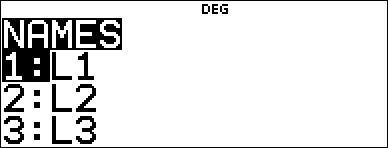
| • | In the formula edit state, pressing v displays a menu to paste L1, L2 or L3 in the formula. |
| • | Formulas cannot contain a circular reference such as L1=L1. |
| • | When a list contains a formula, the edit line will display the reversed cell name. Cells will update if referenced lists are updated. |
| • | To clear a formula list, clear the formula first, and then clear the list. |
| • | If L is used in a list formula, the last element of the computed list is stored to the variable. Lists cannot be stored. |
| • | List formulas accept all calculator functions and real numbers. |
Options (OPS menu)
In the data editor, press v ! to display the OPS menu. Select the appropriate menu item to:
| • | Sort values from smallest to largest or largest to smallest. |
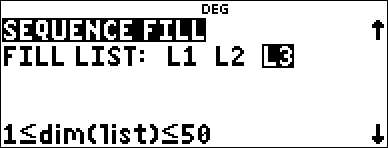
| • | Create a Sequence of values to fill a list. |
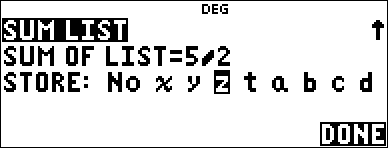
| • | Sum the elements in a list and store to a variable for further investigation. |
Example
|
L1 |
v v 4 v 1 P 4 $ 2 P 4 $ 3 P 4 $ 4 P 4 < |
|
|
Formula |
" v " |
|
|
|
< |
|
|
|
v |
|
|
|
< % j |
|
|
|
< |
|
|
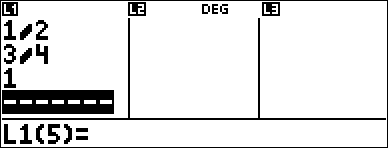
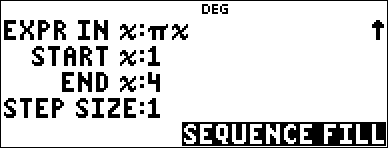
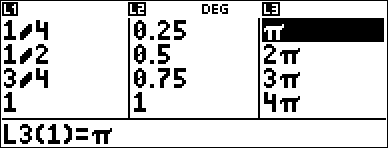
Fill a list with a sequence |
" v ! 3 " " < |
|
|
|
g z < 1 < 4 < 1 < |
|
|
|
< |
|
|
Store the Sum of L1 to the variable z |
v ! 4 < |
|
|
|
< " " " < < |
|
Problem
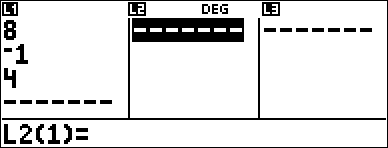
On a November day, a weather report on the Internet listed the following temperatures.
Paris, France 8¡C
Moscow, Russia M1¡C
Montreal, Canada 4¡C
|
Reminder: |
|

|
v v 4 v " 5 |
|
|
8 $ M 1 $ 4 $ " |
|
|
v " 1 |
|
|
9 W 5 V v 1 T 32 |
|
|
< |
|

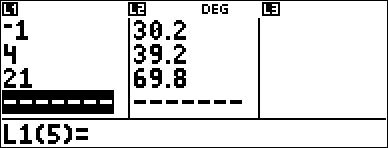
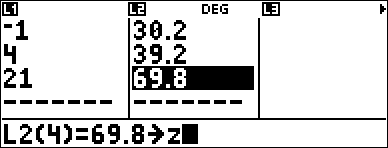
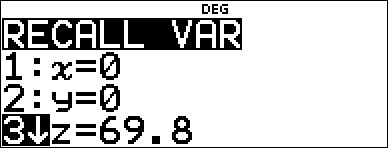
If Sydney, Australia is 21¡C, find the temperature in degrees Fahrenheit and store the temperature in the variable z.
|
! $ $ $ 21 < |
|
|
# " < % " L z z z |
|
|
< % h $ $ |
|