To use the TI-Nspire™ CX Premium Teacher Software or TI-Nspire™ CX Student Software, you will need to sign in to your TI account.
| 1. | Launch the software. |
If this is the first time the software has been launched, you will be prompted to accept the License, Privacy Policy, and Online Terms of Use.
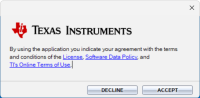
Click Accept.
| 2. | On the sign in prompt, click LAUNCH SIGN IN. |
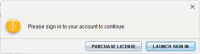
Note: If you need to purchase a single-user license, click PURCHASE LICENSE.
This will open the Texas Instruments Sign In page in your browser. Complete the sign in process with a Google account or with the email address associated with your TI account.
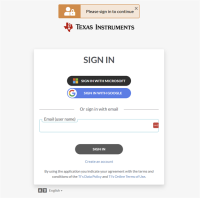
After validating your account, a success message will display in the browser and the software will open.
Viewing Licensing Information
While signed in you can view the details of your license.
| ▶ | Go to Help > License Info. |
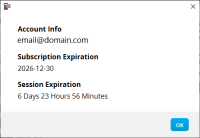
Account Info: Email address of the current user.
Subscription Expiration: Expiration date for the current software license.
Session Expiration: Time left in the current session.
While the software is being used, it will connect with the licensing system every 15 minutes. If the user goes offline at any point, the software will run for seven days from the last time it connected.
Signing Out of Your Account
| 1. | Go to Help > Sign Out. |
| 2. | Click SIGN OUT. |
The software will close and a browser tab will open the Sign In page.
Signing out saves the current state and releases the license back into the pool of available seats. Closing the software using File > Exit or the close button  does not automatically sign a user out and release the license.