The TI-Nspire™ CX II Online Calculator Screen

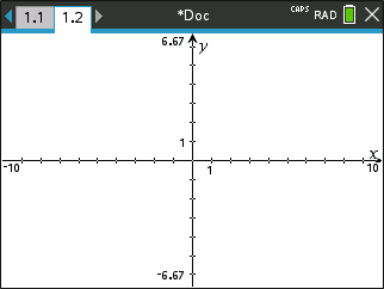
When you are working in a document, icons at the top of the screen provide information about the status of operations and provide an easy way to change settings. The icons are described below.
Icon

Function

¡ ¢

Page scrolling arrows - Use the calculator keypad to click these arrows and scroll through the pages in a document.

Page tab - Labels the problem number and page number of the active page. For example, a label of 1.2 identifies Problem 1, Page 2. If problems are named, hover the pointer over a tab to view the page name.

*Doc

Document name - Shows the current document name. An asterisk by the document name indicates changes were made since the document was last saved. Click the name to open the Documents menu.

CAPS

Shows status of the g, /, and Ê keys.

RAD

Angle Mode - Shows an abbreviation of the angle mode (Degrees, Radians, or Gradians) in effect. Hover the pointer over the indicator to see the full name.

Note: Click the indicator to toggle between RAD and DEG modes.

Settings & Status - Click the icon to open the Settings & Status menu.