|
Materials Needed to Setup Dash Robot
|
•
|
At least one set* consisting of |
|
–
|
Wonder Workshop Dash robot |
|
–
|
Send to CE calculator using TI Connect™ CE. |
|
–
|
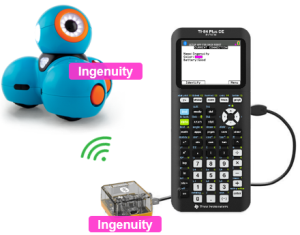
Use small name labels on a robot/Adapter setup to keep your classroom sets of robots and Adapters organized. |
|
|
|
*Note:
|
•
|
To perform the one time setup of your class set of robots and Adapters, setup one Dash robot, powered on, with one TI Bluetooth® Adapter at a time using the SetDash App running on your CE calculator. |
|
•
|
While several Dash robots can be turned on in the range of a TI Bluetooth® Adapter, consider turning on one robot at a time for fast and efficient setup of this hardware set for your classroom. |
|
•
|
The setup is a one-time effort since the TI Bluetooth® Adapter stores the specified Dash robot by the name and color you set. |
|
•
|
When a group of students are sharing one robot and one Adapter, they can each write a CE Python program on their calculator. To run their own program from the CE Python App, |
|
–
|
detached the shared Adapter from one CE |
|
–
|
attached Adapter to another CE from the Python App |
|
–
|
Run their Python program to watch Dash in action |
|