You can customize your display to show or hide optional panels and change the type of information displayed in each one. By default, the TI-SmartView™ CE software displays the calculator emulator workspace in Large Display Screen.
Topic Links
Displaying the Calculator Screen
|
|
||||||
|
|
|
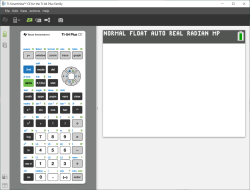
 to view the calculator screen above the keyboard in the Emulator Panel.
  again to show the Keypad + Large Display Screen.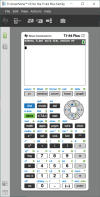
Choosing an Emulator Type
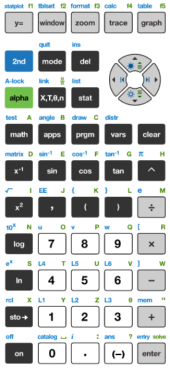
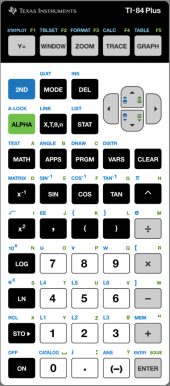
Click the down arrow on  to choose an emulator type.
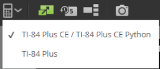
Each emulator type displays its relevant calculator model.
|
TI-84 Plus CE / TI-84 Plus CE Python |
TI-84 Plus |
|---|---|
|
|
|
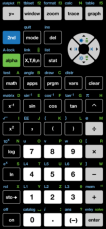
Changing the Calculator Faceplate
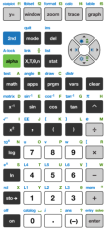
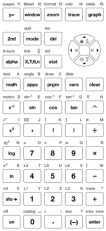
To change the faceplate:
| 1. | Click View. |
| 2. | Hover over Calculator Faceplate. |
| 3. | Click on a calculator faceplate name. |
|
Light |
Outline |
Dark |
|
|
|
|
Showing or Hiding the Key Press History
Click  to show or hide key press history.
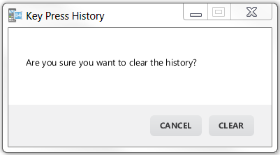
Click CLEAR in the panel next to Key Press History to clear the history.

|
|
Click here and drag to resize the Key Press History panel. |
|
Click here to clear the |


When you press clear, you will see this information box: