Connecting a Calculator as a Remote Keypad
The SmartPad™ CE App is available for the TI-84 Plus CE. To use the
TI-84 Plus CE as a remote keypad for TI-SmartView™ CE:
|
1.
|
SmartPad™ CE App for TI-84 Plus CE comes pre-loaded on the calculator. If not on your TI-84 Plus CE, SmartPad CE App is also available to load to your calculator at education.ti.com/84ceupdate. |
|
2.
|
Connect your TI-84 Plus CE to your computer using a USB Computer cable which came with your calculator. |
|
3.
|
Launch TI-SmartView™ CE. Make sure the TI-SmartView™ CE window is in focus by clicking on the TI-SmartView™ CE window. |
|
4.
|
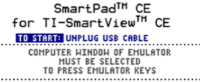
Run SmartPad™ CE App on your TI-84 Plus CE. Press [apps] and select SmartPad™ CE from the Apps menu. Read the information on the splash screen. |
|
5.
|
Press keys on the calculator's keypad which remotely press the emulator keypad on the TI-SmartView™ CE. |
|
6.
|
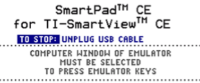
Disconnect USB cable from calculator to stop the App and remote keypad feature. |
|
7.
|
Reconnecting the USB cable and running the App again may be needed if the remote keypad connectivity is no longer responding. |
Notes:
|
•
|
The TI-84 Plus CE running the SmartPad™ CE App will not display the calculations or graphs. The calculator becomes a remote USB keypad for the emulator only. |
|
•
|
The TI-84 Plus CE will remain a remote keypad when the TI-SmartView™ CE window is in focus. Click on the TI-SmartView™ CE window prior to pressing keys on the calculator. |
|
•
|
The TI SilverLink cable is not supported in TI-SmartView™ CE. |
Topic Links