You can access TI-82 Advanced Edition Python commands using menus.
Displaying a Menu
| • | When you press a key to display a menu, that menu temporarily replaces the screen where you are working. |
Ex: press » to display the MATH menu.
| • | After you select an item from a menu, the screen where you are working usually displays again. |
Note: If a context help message is in the status bar when you press a menu that temporarily replaces the screen, that context help will remain in the status bar as a reminder that you are working within a context.
Trig and MathPrint™ Templates
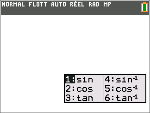
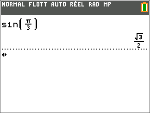
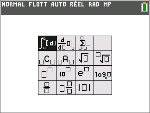
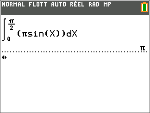
There are two menus (Trigonometric Function Menu, and MathPrint™ Template Menu) that appear on top of your working screen. You can still navigate and paste commands or templates as usual.
|
Trigonometric Function Menu Press ˜ to access this menu. |
|
|
|
|
|
MathPrint™ Template Menu Press R to access this menu. |
|
|
|
|
Moving from One Menu to Another
|
Some keys access more than one menu. When you press such a key, the names of all accessible menus are displayed on the top line. When you highlight a menu name, the items in that menu are displayed. Press ~ and | to highlight each menu name. Note: FRAC shortcut menu items are found in the FRAC menu, and are also found on the MATH NBRE menu. FONC shortcut menu items are also found on the MATH MATH menu. |
|
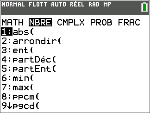
Scrolling a Menu
To scroll down the menu items, press †. To scroll up the menu items, press }.
To page down 9 menu items at a time, press ƒ †. To page up 9 menu items at a time, press ƒ }.
To go to the last menu item directly from the first menu item, press }. To go to the first menu item directly from the last menu item, press †.
Selecting an Item from a Menu
You can select an item from a menu in three ways.
|
Press the number or letter of the item you want to select. The cursor can be anywhere on the menu, and the item you select does not need to be displayed on the screen. |
|
|
-or- |
|
|
Press † or } to move the cursor to the item you want, and then press Í. |
|
|
-or- |
|
|
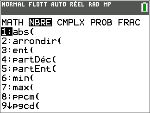
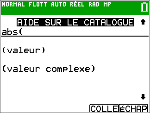
Within the Catalog listing of functionality, move the cursor to the item you want, and then press Ã. For most commands, the Catalog Help syntax editor displays the correct syntax. Enter the syntax using the displayed help, and then press ƒ a to paste. The Catalog Help pastes the complete command. Press ƒ b to escape without pasting the command. |
|
|
Note: After you select an item from a menu, the TI-82 Advanced Edition Python typically displays the previous screen. If you do not see PASTE on the Catalog Help screen, press y 5 until you return to the home screen, then go back into the menu and repeat your actions. If this happens, it may mean the screens were layered and the previous screen did not have an active cursor on an input line to accept the pasting of the function or command. |
|
Leaving a Menu without Making a Selection
You can leave a menu without making a selection in these two ways.
| • | Press y 5 to return to the home screen. |
-or-
| • | Press ‘ to return to the previous screen. |
Using Menus
When you press a key or key combination to display a menu, one or more menu names appear on the top line of the screen.
| • | The menu name on the left side of the top line is highlighted. Up to nine items in that menu are displayed, beginning with item 1, which also is highlighted. |
| • | A number or letter identifies each item’s place in the menu. The order is 1 through 9, then 0, then A, B, C. Once number and letter options are exhausted, the item number or letter area will be blank. Select these items using the arrow keys. |
| • | When the menu continues beyond the displayed items, a down arrow ($) replaces the colon next to the last displayed item. |
| • | When a menu item ends in an ellipsis (...), the item displays a secondary menu, editor, or wizard when you select it. |
| • | Use Catalog Help for more syntax help when needed. Select a menu item and then press à to go to a syntax help editor (if the menu item is supported). |
Working with MATH Menus
To display the MATH menus, press ». Press | or ~ to display the menus for the NUM (Number), CMPLX (Complex), PROB (Probability) or FRAC (Fraction) commands.
Note: Use Catalog Help for more syntax help when needed. Select a menu item and then press à to go to a syntax help editor (if the menu item is supported).
MATH
To display the MATH menu, press ».
|
|
1: e4Frac |
Displays the answer as a fraction. |
|
|
|
2: e4Dec |
Displays the answer as a decimal. |
|
|
|
3: 3 |
Calculates the cube. |
|
|
|
4: 3‡( |
Calculates the cube root. |
|
|
* |
5: x‡ |
Calculates the xth root. |
|
|
|
6: fMin( |
Finds the minimum of a function. |
|
|
|
7: fMax( |
Finds the maximum of a function. |
|
|
* |
8: nDeriv( |
Computes the numerical derivative of a function at a point. |
|
|
* |
9: fnInt |
Computes the numerical integral of a function over an interval. |
|
|
* |
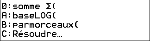
0: summation G( |
Computes the sum of an expression over an index. |
|
|
* |
A: logBASE( |
Computes the logarithm of a specified value determined from a specified base: logBASE(value, base). |
|
|
|
B: piecewise( |
Allows the entry of piecewise functions. |
|
|
|
C: Numeric Solver... |
Displays the equation solver. |
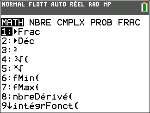
* FUNC shortcut menu ƒ _
NUM
To display the NUM menu, press » ~.
|
* |
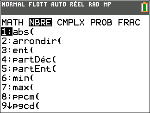
1: abs( |
Absolute value |
|
|
|
2: round( |
Round |
|
|
|
3: iPart( |
Integer part |
|
|
|
4: fPart( |
Fractional part |
|
|
|
5: int( |
Greatest integer |
|
|
|
6: min( |
Minimum value |
|
|
|
7: max( |
Maximum value |
|
|
|
8: lcm( |
Least common multiple |
|
|
|
9: gcd( |
Greatest common divisor |
|
|
|
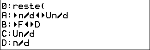
0: remainder( |
Reports the remainder as a whole number from a division of two whole numbers where the divisor is not zero. |
|
|
** |
A: e4 n/d e3 4 Un/d |
Converts an improper fraction to a mixed number or a mixed number to an improper fraction. |
|
|
** |
B: e4 F e3 4 D |
Converts a decimal to a fraction or a fraction to a decimal. |
|
|
** |
C: Un/d |
Displays the mixed number template in MathPrint™ mode. Displays a small u between the whole number and fraction in Classic mode. Use n/d to complete the mixed number. |
|
|
** |
D: n/d |
Displays the fraction template in MathPrint™ mode. Displays a thick fraction bar between the numerator and the denominator in Classic mode. |
* FUNC shortcut menu ƒ _
** FRAC shortcut menu ƒ ^
CMPLX
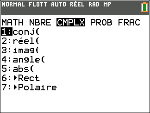
To display the CMPLX menu, press » ~ ~.
|
1: conj( |
Returns the complex conjugate. |
|
|
2: real( |
Returns the real part. |
|
|
3: imag( |
Returns the imaginary part. |
|
|
4: angle( |
Returns the polar angle. |
|
|
5: abs( |
Returns the magnitude (modulus). |
|
|
6: e4Rect |
Displays the result in rectangular form. |
|
|
7: e4Polar |
Displays the result in polar form. |
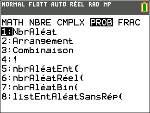
PROB
To display the PROB menu, press » | |.
|
|
1: rand |
Random-number generator |
|
|
* |
2: nPr |
Number of permutations |
|
|
* |
3: nCr |
Number of combinations |
|
|
* |
4: ! |
Factorial |
|
|
|
5: randInt( |
Random-integer generator |
|
|
|
6: randNorm( |
Random # from Normal distribution |
|
|
|
7: randBin( |
Random # from Binomial distribution |
|
|
|
8: randIntNoRep( |
Random ordered list of integers in a range |
* FUNC shortcut menu ƒ _
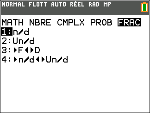
FRAC
To display the FRAC menu, press » |.
|
** |
1: n/d |
Displays the fraction template in MathPrint™ mode. Displays a thick fraction bar between the numerator and the denominator in Classic mode. |
|
|
** |
2: Un/d |
Displays the mixed number template in MathPrint™ mode. Displays a small u between the whole number and fraction in Classic mode. Use n/d to complete the mixed number. |
|
|
** |
3: e4 F e3 4 D |
Converts a decimal to a fraction or a fraction to a decimal. |
|
|
** |
4: e4 n/d e3 4 Un/d |
Converts an improper fraction to a mixed number or a mixed number to an improper fraction. |
** FRAC shortcut menu ƒ ^