This section describes the PRGM I/O (Input/Output) Instructions.
Topic Links
PRGM I/O Menu
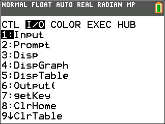
To display the PRGM I/O (program input/output) menu, press ¼ ~ from within the program editor only.
|
Important Tip: To quickly find a command, use ƒ } or ƒ † to page through screens. |
|
|
|
|
|
CTRL |
I/O |
COLOR |
EXEC |
HUB |
|
|
|---|---|---|---|---|---|---|
|
|
|
|
|
|
|
|
|
|
|
Description |
|
1: |
Input |
Enters a value or uses the cursor. |
|
2: |
Prompt |
Prompts for entry of variable values. |
|
3: |
Disp |
Displays text, value, or the home screen. |
|
4: |
DispGraph |
Displays the current graph. |
|
5: |
DispTable |
Displays the current table. |
|
6: |
Output( |
Displays text at a specified position. |
|
7: |
getKey |
Checks the keyboard for a keystroke. |
|
8: |
ClrHome |
Clears the display. |
|
9: |
ClrTable |
Clears the current table. |
|
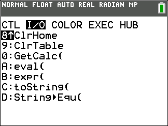
0: |
GetCalc( |
Gets a variable from another TI‑82 Advanced Edition Python. |
|
A: |
eval( |
Returns an evaluated expression as a string with 8 significant digits. |
|
B: |
expr( |
Converts the character string contained in string to an expression and executes it. |
|
C: |
toString( |
Converts value to a string where value can be real, complex, an evaluated expression, list, or matrix. |
|
D: |
String4Equ( |
Converts a string into an equation and stores it in Y= var. The string can be a string or string variable. |
Note: Press à when a command is highlighted in a menu to use the syntax help for your programming.
These instructions control input to and output from a program during execution. They allow you to enter values and display answers during program execution.
To return to the program editor without selecting an item, press ‘.
Displaying a Graph with Input
Input without a variable displays the current graph. You can move the free-moving cursor, which updates X and Y (and R and q for PolarGC format). The pause indicator is on. Press Í to resume program execution.
Input
|
Program |
Output |
|
|
|
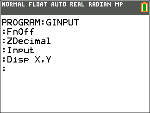
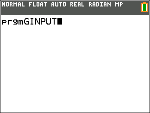
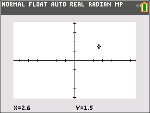
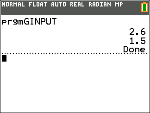
Storing a Variable Value with Input
Input with variable displays a ? (question mark) prompt during execution. variable may be a real number, complex number, list, matrix, string, or Y= function. During program execution, enter a value, which can be an expression, and then press Í. The value is evaluated and stored to variable, and the program resumes execution.
Input [variable]
You can display text or the contents of Strn (a string variable) of up to 26 characters as a prompt. During program execution, enter a value after the prompt and then press Í. The value is stored to variable, and the program resumes execution.
Input ["text",variable]
Input [Strn,variable]
|
Program |
Output |
|
|
|
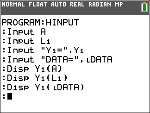
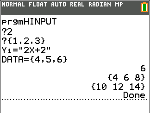
Note: When a program prompts for input of lists and Yn functions during execution, you must include the braces ( { } ) around the list elements and quotation marks ( " ) around the expressions.
Prompt
During program execution, Prompt displays each variable, one at a time, followed by =?. At each prompt, enter a value or expression for each variable, and then press Í. The values are stored, and the program resumes execution.
Prompt variableA[,variableB,...,variable n]
|
Program |
Output |
|
|
|
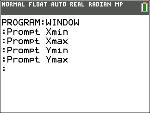
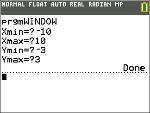
Note: Y= functions are not valid with Prompt.
Disp
Displaying the Home Screen
Disp (display) without a value displays the home screen. To view the home screen during program execution, follow the Disp instruction with a Pause instruction.
Displaying Values and Messages
Disp with one or more values displays the value of each.
Disp [valueA,valueB,valueC,...,value n]
| • | If value is a variable, the current value is displayed. |
| • | If value is an expression, it is evaluated and the result is displayed on the right side of the next line. |
| • | If value is text within quotation marks, it is displayed on the left side of the current display line. ! is not valid as text. |
|
Program |
Output |
|
|
|
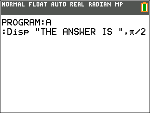
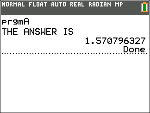
If Pause is encountered after Disp, the program halts temporarily so you can examine the screen. To resume execution, press Í.
Note: If a matrix or list is too large to display in its entirety, ellipses (...) are displayed in the last column, but the matrix or list cannot be scrolled. To scroll, use Pause value.
DispGraph
DispGraph (display graph) displays the current graph. If Pause is encountered after DispGraph, the program halts temporarily so you can examine the screen. Press Í to resume execution.
DispTable
DispTable (display table) displays the current table. The program halts temporarily so you can examine the screen. Press Í to resume execution.
Output(
Output( displays text or value on the current home screen beginning at row (1 through 10) and column (1 through 26), overwriting any existing characters.
Note: You may want to precede Output( with ClrHome.
Expressions are evaluated and values are displayed according to the current mode settings. Matrices are displayed in entry format and wrap to the next line. ! is not valid as text.
Output(row,column,"text")
Output(row,column,value)
|
Program |
Output |
|
|
|
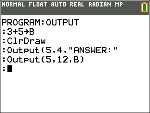
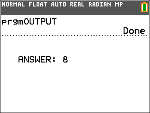
For Output( on a Horiz split screen, the maximum value for row is 4.
getKey
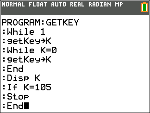
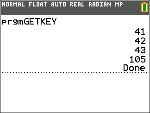
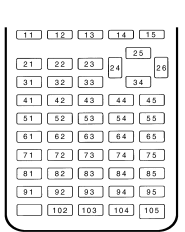
getKey returns a number corresponding to the last key pressed, according to the key code diagram below. If no key has been pressed, getKey returns 0. Use getKey inside loops to transfer control, for example, when creating video games.
|
Program |
Output |
|
|
Note: », Œ, ¼, and Í were pressed during program execution. |
Note: You can press É at any time during execution to break the program.
Key Code Diagram
ClrHome, ClrTable
ClrHome (clear home screen) clears the home screen during program execution.
ClrTable (clear table) clears the values in the table during program execution.
GetCalc(
GetCalc( gets the contents of variable on another TI-82 Advanced Edition Python and stores it to variable on the receiving TI‑82 Advanced Edition Python. variable can be a real or complex number, list element, list name, matrix element, matrix name, string, Y= variable, graph database, or picture.
GetCalc(variable[,portflag])
By default, the TI‑82 Advanced Edition Python uses the USB port if it is connected. If the USB cable is not connected, it uses the I/O port. If you want to specify either the USB or I/O port, use the following portflag numbers:
portflag=0 use USB port if connected;
portflag=1 use USB port;
portflag=2 use I/O port
Note: TI-82 Advanced Edition Python only links to another TI-82 Advanced Edition Python.
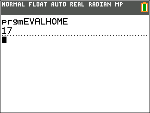
eval(
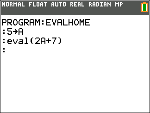
eval( returns an evaluated expression as a string with 8 significant digits. The expression must simplify to a real expression.
eval(expression)
|
Program |
Output |
|
|
|
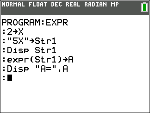
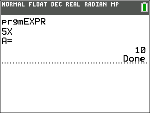
expr(
Converts the character string contained in string to an expression and executes the expression. string can be a string or a string variable.
expr(string)
|
Program |
Output |
|
|
|
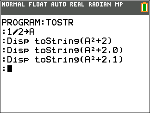
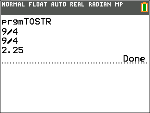
toString(
Converts value to a string where value can be real, complex, an evaluated expression, list, or matrix. String value displays in classic format (0) following the mode setting AUTO/DEC or in decimal format (1).
toString(value[,format])
|
Program |
Output |
|
|
|
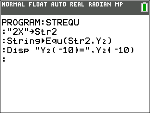
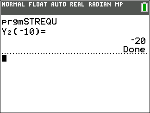
String4Equ(
String4Equ( converts string into an equation and stores the equation to Yn. string can be a string or string variable. String4Equ( is the inverse of Equ4String(.
String4Equ(string,Yn)
|
Program |
Output |
|
|
|