Using Worksheets: Tools for Financial Solutions
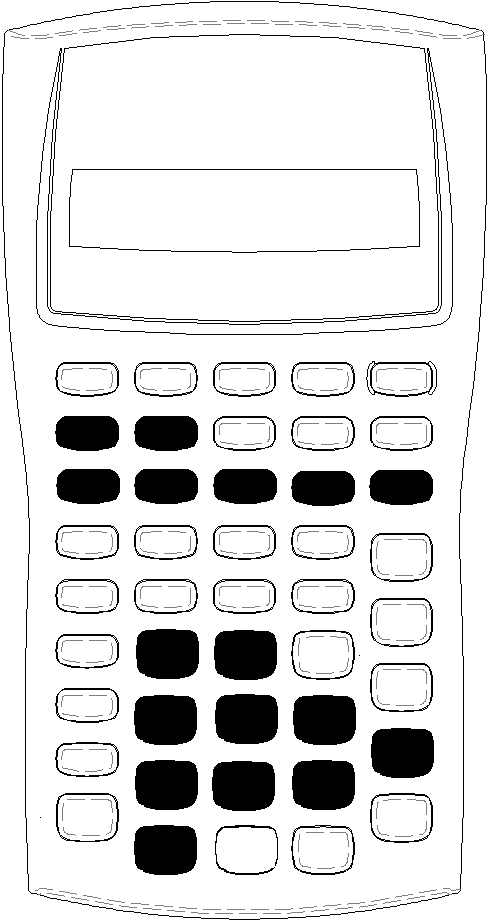
Each worksheet is independent of the others: operations in a worksheet do not affect variables in other worksheets. When you exit a worksheet or turn off the calculator, the calculator retains all worksheet data.
|
To select |
Function |
Press |
|
TVM worksheet |
Analyzes equal cash flows, for example, annuities, loans, mortgages, leases, and savings |
,, -, ., /, 0, or & [ |
|
Amortization worksheet |
Performs amortization calculations and generates an amortization schedule |
& \ |
|
Cash Flow worksheet |
Analyzes unequal cash flows by calculating net present value and internal rate of return |
& ' |
|
Bond worksheet |
Computes bond price and yield to maturity or call |
& l |
|
Depreciation worksheet |
Generates a depreciation schedule using one of six depreciation methods |
& p |
|
Statistics worksheet |
Analyzes statistics on one- or two-variable data using four regression analysis options |
& k |
|
Percent Change/Compound Interest worksheet |
Computes percent change, compound interest, and cost-sell markup |
& q |
|
Interest Conversion worksheet |
Converts interest rates between nominal rate (or annual percentage rate) and annual effective rate |
& v |
|
Date worksheet |
Computes number of days between two dates, or date/day of the week a specified number of days is from a given date |
& u |
|
Profit Margin worksheet |
Computes cost, selling price, and profit margin |
& w |
|
Breakeven worksheet |
Analyzes relationship between fixed cost, variable cost, price, profit, and quantity |
& r |
|
Memory worksheet |
Accesses storage area for up to 10 values |
& { |
Accessing the TVM Worksheet Variables
|
|
Note: You can assign values to TVM variables while in a prompted worksheet, but you must return to the standard-calculator mode to calculate TVM values or clear the TVM worksheet. |
Accessing Prompted-Worksheet Variables
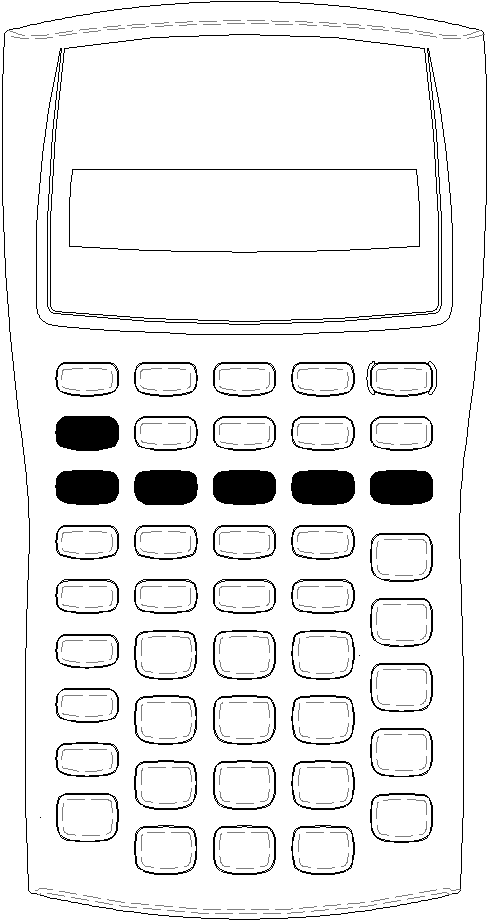
After you access a worksheet, press # or " to select variables. For example, press & \ to access the Amortization worksheet, and then press # or " to select the amortization variables (P1, P2, BAL, PRN, INT). See:
Indicators prompt you to select settings, enter values, or compute results. For example, the # and " indicators remind you to press # or " to select other variables.
To return to the standard-calculator mode, press & U.
Types of Worksheet Variables
| • | Enter-only |
| • | Compute-only |
| • | Automatic-compute |
| • | Enter-or-compute |
| • | Settings |
Note: The = sign displayed between the variable label and value indicates that the variable is assigned the value.
Enter-Only Variables
Values for enter-only variables must be entered, cannot be computed, and are often limited to a specified range, for example, P/Y and C/Y. The value for an enter-only variable can be:
| • | Entered directly from the keyboard. |
| • | The result of a math calculation. |
| • | Recalled from memory. |
| • | Obtained from another worksheet using the last answer feature. |
When you access an enter-only variable, the calculator displays the variable label and ENTER indicator. The ENTER indicator reminds you to press ! after keying in a value to assign the value to the variable. After you press !, the 1 indicator confirms that the value is assigned.
Compute-Only Variables
You cannot enter values manually for compute-only variables, for example, net present value (NPV). To compute a value, display a compute-only variable and press C. The calculator computes and displays the value based on the values of other variables.
When you display a compute-only variable, the COMPUTE indicator reminds you to press C to compute its value. After you press C, the 7 indicator confirms that the displayed value has been computed.
Automatic-Compute Variables
When you press # or " to display an automatic-compute variable (for example, the Amortization worksheet INT variable), the calculator computes and displays the value automatically without you having to press C.
Enter-or-Compute Variables in the TVM Worksheet
You can either enter or compute values for the TVM worksheet variables (N, I/Y, PV, PMT, and FV).
Note: Although you do not have to be in the standard-calculator mode to assign values to these variables, you must be in the standard-calculator mode to compute their values.
| • | To assign the value of a TVM variable, key in a number and press a variable key. |
| • | To compute the value of a TVM variable, press C, and then press the variable key. The calculator computes and displays the value based on the values of other variables. |
Enter-or-Compute Variables in Prompted Worksheets
You can either enter or compute values for some prompted worksheet variables (for example, the Bond worksheet YLD and PRI variables). When you select an enter-or-compute variable, the calculator displays the variable label with the ENTER and COMPUTE indicators.
| • | The ENTER indicator prompts you to press ! to assign the keyed-in value to the displayed variable. |
| • | The COMPUTE indicator prompts you to press C to compute a value for the variable. |
Selecting Worksheet Settings
Many prompted worksheets contain variables consisting of two or more options, or settings (for example, the Date worksheet ACT/360 variable). When you select variables with settings, the calculator displays the SET indicator and the current setting.
To scroll through the settings of a variable, press & V once for each setting.
Display Indicators
| • | The 1 indicator confirms that the calculator entered the displayed value in the worksheet. |
| • | The 7 indicator confirms that the calculator computed the displayed value. |
| • | When a change to the worksheet invalidates either entered or computed values, the 1 and 7 indicators disappear. |