Python
Converting and Sending Python Programs
Convert a Python Program to use with the Python App
A Python program (*.py) from your computer will convert to the calculator Python AppVar when you send the file to your CE Python enabled calculator using TI Connect™ CE. Then, using the appropriate Python App for your calculator, you will be able to edit and run your Python program.
Reminder: For any computer/TI-Python experience: After creating a Python program in a Python development environment on the computer, please validate your program runs on the calculator/emulator in the TI-Python experience. Modify the program as needed.
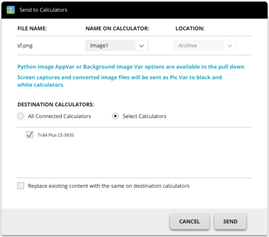
When you send your *.py program file(s) using Send to Calculators, the action is similar to sending any other file to the calculator.
FILE NAME: Displays the computer file name of your *.py file(s).
Note: This may differ from the depending on what you named the Python program on your computer.
NAME ON CALCULATOR:
|
•
|
If the computer file name follows the Python AppVar naming rules, then the Python AppVar calculator name populates with the computer file name. Naming rules are shown on the screen above. |
|
-
|
Lower case will automatically change to upper case letters. |
|
•
|
If the computer file name does not follow the Python AppVar naming rules, then the NAME ON CALCULATOR populates with PYTHON01, PYTHON02, etc. |
|
•
|
Change the NAME ON CALCULATOR using the Custom naming option in the pull down. You must follow the naming rules for the Python AppVar. |
LOCATION:
|
•
|
Choose to send the Python AppVar to the calculator’s RAM or Archive memory. |
|
-
|
The Python App will only edit and run Python AppVars in RAM. |
|
•
|
Store Python AppVars in Archive memory on the calculator when you |
|
-
|
do not have enough memory in the Python App experience as stated in the App. |
|
-
|
do not wish to see the Python AppVars load into the Python experience until a later time when you move them from Archive to RAM on the calculator. |
Note: To move a Python AppVar between RAM and Archive memory on your CE
Press y L 2:Mem Management/Delete... > B:Var App…
Press [enter] on each AppVar to toggle from RAM to Archive (denoted by *).
DESTINATION CALCULATORS:
|
▶
|
Select whether you want to send the program to all connected calculators, or just selected calculators (from a check list). |
Which AppVar is a Python AppVar?
You will be able to identify your Python AppVars as follows.
In TI Connect CE Calculator Explorer, the Python AppVar will display as “AppVar Python.” Here, SCRIPT1 and VABSOLUE are Python AppVars.
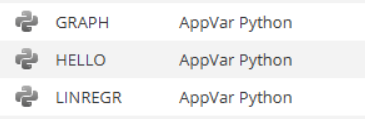
Note: The Python AppVar will send to other 8x family calculators but will not be accessible on those calculators.
Press y L 2:Mem Management/Delete... > B:Var App… will display PY at the right of the screen.
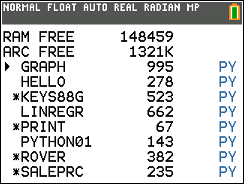
Send or Convert a Python AppVar to the Computer (*.py or *.8xv)
You can send a Python program from your calculator to your computer as a Python program (*.py) or a Python AppVar (*.8xv).
|
•
|
Option 1: Drag and Drop
|
|
-
|
Drag and drop a Python Program (PY AppVar) from a connected CE calculator to the computer. Program will save with the *.py extension and will be available to edit in a text file. As previouly mentioned, sending a *.py file to a CE Python enabled calculator or emulator will convert to the correct PY AppVar file for use in the Python App. |
|
•
|
Option 2: Actions > Send to Computer
|
|
-
|
Send to computer with option to send as a Python program (*.py or *.8xv): |
|
-
|
Select a Python AppVar in Calculator Explorer. |
|
-
|
Select Actions>Send to Computer. |
|
-
|
By default, the file will save as *.py. If needed, select the *.8xv extension in the pull down to save the PY AppVar to your computer. Note that the PY AppVar cannot be edited as a text file on your computer. Recommend to save as *.py for flexible use of your CE Python program on your computer. Again, *.py programs convert to the correct CE file format when sending to a connected calculator or to a TI-SmartView Python enabled emulator. |
Note:
|
-
|
After converting a Python AppVar back to a *.py computer file, please check the syntax, spacing, line breaks, and Python specific items in your computer Python software. Make necessary modifications specific to the version of Python you are using on the computer. Python versions vary. |
|
-
|
When saving the conversion to *.py back to your computer, it is best to save the program to a new *.py name on your computer to avoid overwriting your original *.py program. |
Convert an image for use in the Python App with the ti_image Add-On module
The ti_image Add-On module is available in the latest CE Bundle update.
For more information on using ti_image and the Python App, please see
The ti_image Add-On module offers a method “load_image(“name”). The argument “name” is the calculator name of an image you will convert to a specific AppVar for use in the Python App.
Note: The image conversion for the CE Python experience is different from the CE OS Background Image conversion used in the OS graph area . While the steps are similar in the Explorer Workspace, please read the prompts for the best outcome.
|
1.
|
Drag your image (*.png) to the connected calculator in the Explorer Workspace.
|
|
|
|
2.
|
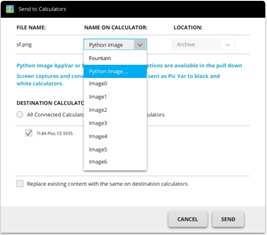
For a Python image format, please pull down NAME ON CALCULATOR and select Python Image... . |
Notes:
|
•
|
Image0 – Image9 are reserved for the OS Background Image Vars. |
|
•
|
You will create a unique name for your Python image AppVar. |
|
•
|
If you are changing a Python image name, you will see the previous name in the pull down. Select Python Image… to change the current name as well. |
|
|
|
3.
|
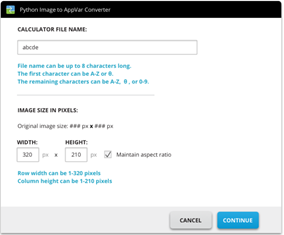
Enter a CALCULATOR FILE NAME following the naming rules provided. Remember the calculator name of your image for use in the Python App ti_image Add-On module method load_image(“name”). |
|
|
|
4.
|
IMAGE SIZE IN PIXELS: Enter the WIDTH and HEIGHT for the converted image. |
|
a)
|
The original image size in pixels is provided. Note the pixel ranges for Row width and Column height provided to avoid sizing errors. |
|
b)
|
Check the box to maintain the aspect ratio of your original image. |
|
c)
|
Select CONTINUE. The image will convert to the AppVar format. |
|
d)
|
The Send to Calculator dialog will display. SEND to a CE Python enabled calculator. |
|
|
Reminder: For any computer/TI-Python experience: After creating a Python program in a Python development environment on the computer, please validate your program runs on the calculator/emulator in the TI-Python experience. Modify the program as needed.

