When you save the CE emulator state, a file is created that stores the emulator settings with all of the changes that you have made.
For example, you might want to set up a class presentation by entering functions in the Y= editor and changing Window and Zoom settings. When you save your changes in an emulator state file, you simply load the file to show your presentation. If you want to create different presentations for different classes, you can create multiple emulator state files.
Note: The key press history, screen capture shots, the emulator view, and the emulator size are not saved in the emulator state file. Please take note the CE Emulator state files may be large. Contact your IT department if your storage capacity is an issue.
Saving the CE Emulator State
Managing, saving and loading an emulator state file is only available for the CE emulator. The
| 1. | Click Actions > Save Emulator State.... |
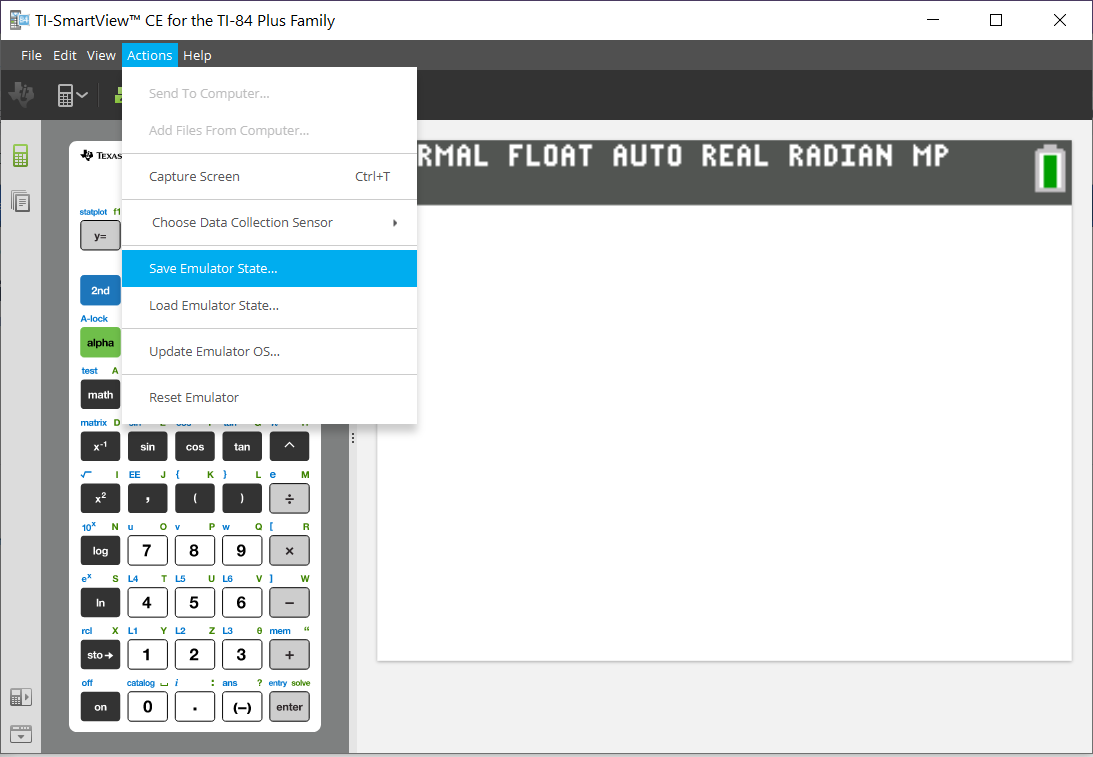
| 2. | In the dialog box: |
| a) | Navigate to the folder in which you want to store the CE emulator state file. |
| b) | Type a file name. Use a name that describes the CE emulator state. |
The CE emulator state files will have a pre-configured filename
WARNING: A CE emulator state file created in TI-SmartView™ CE v5.6.0 or higher will not load on previous versions of TI-SmartView™ CE. State files are intended for use on the TI-SmartView™ CE version where the state file was created. State files created prior to TI-SmartView™ CE version 5.6.0 will not run on higher versions to TI-SmartView™ CE. Please review old state files and save off calculator files prior to updating TI-SmartView™ CE.
| c) | Click Save. |
Loading an CE Emulator State
Because CE emulator state files are specific to each calculator model, you can only load an emulator state file for the active calculator model.
| 1. | Click Actions > Load Emulator State. |
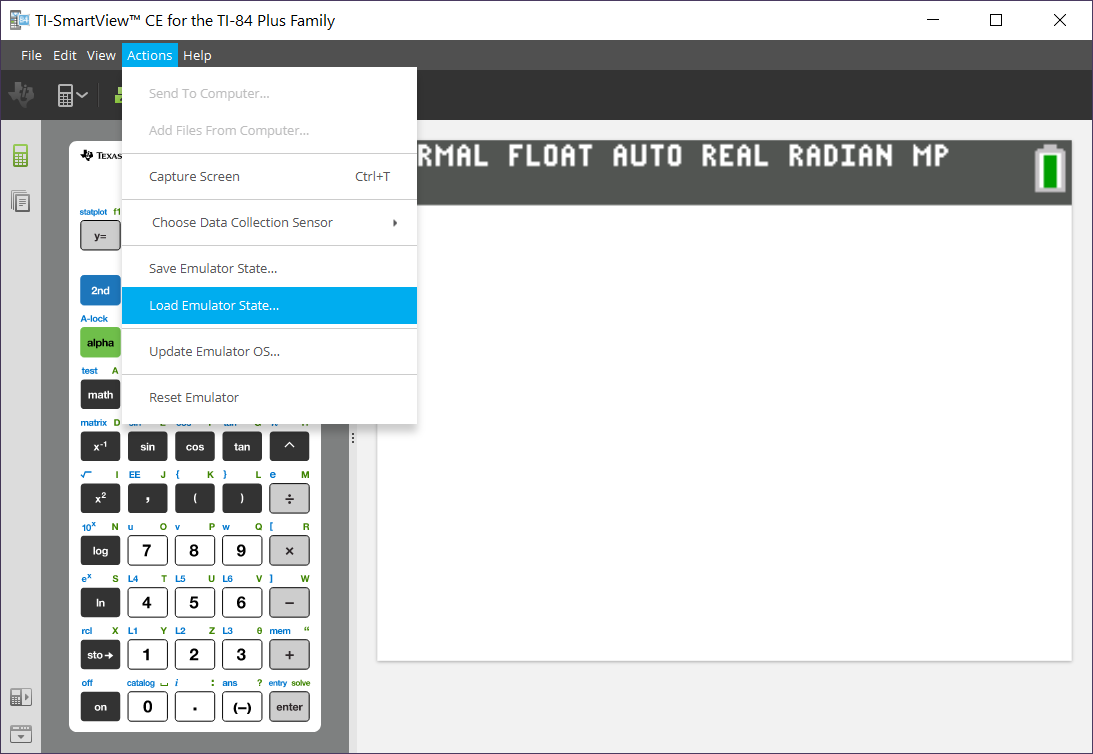
| 2. | In the dialog box: |
| a) | Navigate to the folder that contains the emulator state file. |
Note: Only the CE emulator state files for the active calculator model will be displayed.
| b) | Click the CE emulator state name to highlight it. |
| c) | Click Open. |