The Python Experience
Using TI-SmartView™ CE and the Python Experience
|
•
|
Launch TI-SmartView™ CE. |
|
•
|
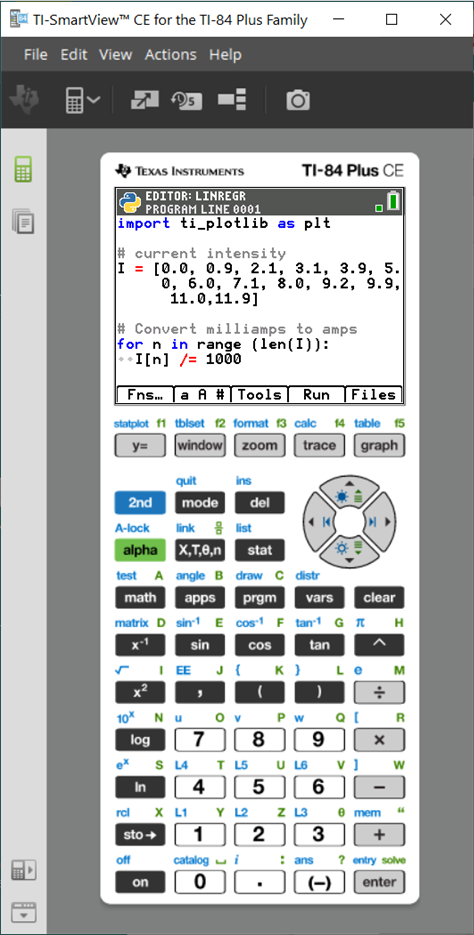
Run the Python App on the
TI-84 Plus CE emulator. |
|
–
|
Execution of your Python program in the Shell |
|
•
|
Add-On modules ti_draw and ti_image are also included. |
|
•
|
SmartPad CE App will remotely press the keypad when the Python App is running. |
|
•
|
You can send your computer *.py files to the Emulator Explorer workspace to convert your programs to PY AppVars.
|
|
|
Hub/Rover Programs
|
–
|
Create ti_hub/ti_rover Python programs in the CE emulator running the Python App. |
*Note: There is no connectivity between TI-SmartView™ CE and TI-Innovator™ Hub or TI-Innovator™ Rover. Programs can be created and then run on the CE calculator.
|
–
|
Quit the Python App to prepare to transfer the Python AppVar(s) from the emulator. The emulator should not “be busy” running an App or program for the next step. |
|
–
|
Change to the Emulator Explorer workspace and send the program(s) to the computer. |
|
–
|
Use TI Connect™ CE to send the Python AppVars from the computer to the CE calculator for the TI-Innovator™ Hub/TI-Innovator™ Rover experience. |
Note: To break a running Python program in the Shell, such as if a program is in a continuous loop, press [on]. Press [Tools] [zoom] > 6:New Shell as an alternate method to halt a running program.
Reminder: For any computer/TI-Python experience: After creating a Python program in a Python development environment on the computer, please validate your program runs on the calculator/emulator in the TI-Python experience. Modify the program as needed.
SmartPad CE App Remote Keypad
|
–
|
Running the SmartPad CE App on your connected CE functions as a remote keypad including the special keypad mapping offered when the Python App is running. |
Emulator Workspace
|
-
|
The CE emulator runs the Python App. To launch the Python App, select [prgm] 2:Python App. See: Programming Python in TI-84 Plus CE Python eGuide. |
Emulator Explorer Workspace
|
–
|
Please quit the Python App so the emulator is not busy when you access the full features of the Emulator Explorer workspace. |
|
-
|
A Python program (PY AppVar) will save from the CE to a computer as *.py file. Open the *.py file in a text editor to view or edit the file for the CE Python experience. As in previous releases, TI-SmartView™ CE and TI Connect™ CE Explorer will send/convert *.py files to the calculator file type, PY AppVar. There is no need to save the CE PY AppVar on your computer. |
|
-
|
When sending an image from a computer to a connected CE, an additional image conversion option is available to convert and send the correct Python image AppVar format to the CE. Then, using the Python App, import the ti_image Add-On module to use the image in your program. |
|
–
|
When sending a program.py file created in another Python environment, your PY AppVar will need to be edited to run as expected in TI-Python. Use the Python App Editor to modify as needed for the unique modules such as
ti_plotlib, ti_system, ti_hub and ti_rover. |
Data Import Wizard
|
–
|
*.csv files of data, formatted as stated in the wizard dialog, will convert data into CE list variables. Methods in ti_system can then be used to share lists between the emulator CE OS and the Python App. This feature is similar to the Data Import Wizard in TI Connect™ CE. |
|
-
|
If decimal numbers are represented with the use of a comma in the *.csv file, the file will not convert using the Data Import Wizard. Please check your computer operating system number formatting and convert the *.csv to use the decimal point representation. The calculator list and matrix editor use the number format as, for example, 12.34 and not 12,34. |