
Download now.
TI Connect™ CE software application
Free connectivity software for the TI-84 Plus family of graphing calculators.
Download

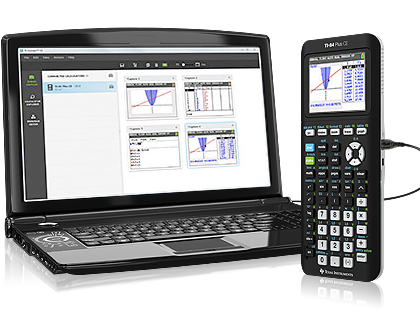
Computer software that allows for connectivity between your computer and TI-84 Plus family graphing calculator.
Key benefits:
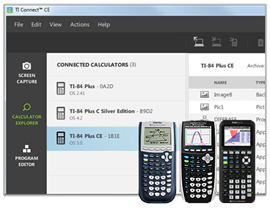
Connect to multiple graphing calculators at once to update your graphing calculator’s operating system (OS), transfer data, download calculator software applications (apps) and edit and upload programs.
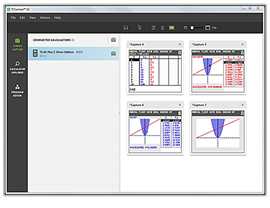
Take and manage screen captures from your connected graphing calculator quickly and simply. The Screen Capture workspace also enables you to convert images to be used as a background on your calculator.
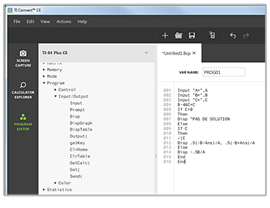
Create and edit calculator TI-Basic programs using the program editor workspace. Quickly send programs directly to your connected calculator.


*macOS 27 is the last release with full Rosetta 2 support. TI software using Rosetta 2 may not run on macOS 28 or newer.


