
Education products
Graphing Calculators
Many standardized tests and college entrance exams permit or even require the use of a graphing calculator. A TI graphing calculator is ideal for students to use in math and science classes from middle school through college.
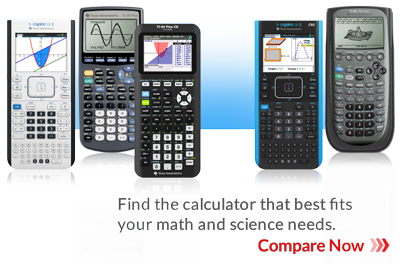
TI-Nspire™ Technology
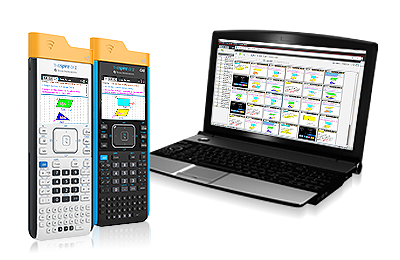
Deepen students’ understanding of math, science and STEM with TI-Nspire™ CX technology. With products that use the same functionality and content — including graphing calculators, software, apps for iPad® and a classroom management system — this technology allows for learning opportunities across multiple subjects and grade levels.
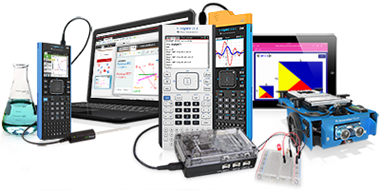
Computer Software
TI software products range from student software to help students master math and science concepts to teacher software to help demonstrate and lead classroom exploration of math and science concepts.
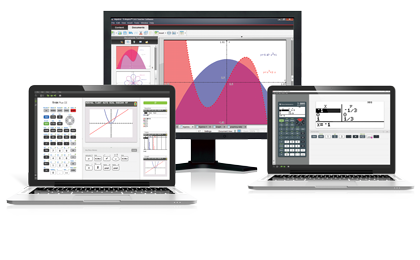
TI-Innovator™ Technology
Engage students in basic coding, engineering design and open-ended STEM projects with activities and technology that are plug-and-play and ready to use with TI-84 Plus CE and TI-Nspire™ CX families of graphing calculators and software.
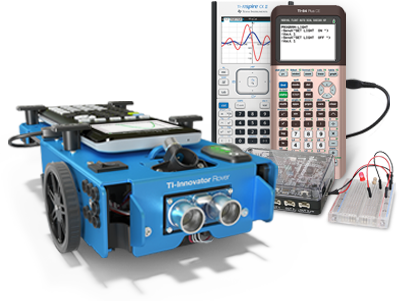
TI-Nspire™ Navigator™ System
These systems enable educators to quickly connect to all of their students and perform real-time assessment, share files, monitor student understanding of concepts and more.
Scientific Calculators
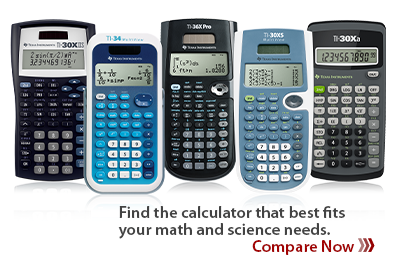
From basic calculations to sophisticated two-variable statistics, conversions, regression analysis and scientific data plotting, TI’s scientific calculators provide a range of functionality for general math, algebra, trigonometry and statistics.
Data Collection
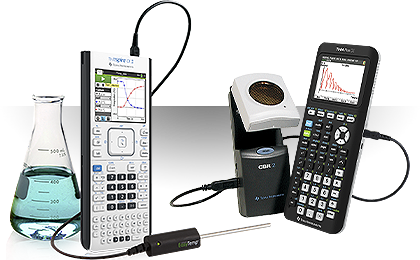
Powerful data-collection solutions for subjects ranging from biology, chemistry and physics to middle grades and high school mathematics.
Financial Calculators
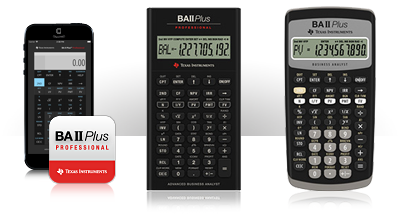
Financial calculator solutions with specialized business functions, from accounting to real estate. Perfect for business professionals, educators, real estate agents, brokers or students.
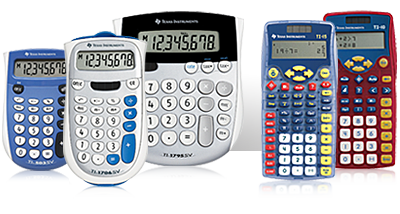
Basic and Elementary
Help prepare young students for their next steps in math and science with TI elementary calculators.
 Graphing Calculators
 TI-Nspire™ Technology
 Computer Software
 TI-Innovator™ Technology
 TI-Nspire™ Navigator™ System
 Scientific Calculators
 Data Collection
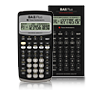 Financial Calculators
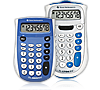 Basic and Elementary
Vernier EasyData,Vernier EasyLink and Vernier EasyTemp are registered trademarks of Vernier Software & Technology.